
This article is referenced and noted from the Docker practice series on Viblo.
Link to the series: Docker Practice from Basics
I. Installing Docker and Some Basic Concepts
Installation can be referenced in the documentation
WHAT IS DOCKER
Benefits of Containerized Applications
- Build once, use everywhere (works on my machine problem solved)
- Isolated environment
- Easy development
- Scalability (container orchestration)
Previously, virtual machines had similar properties, but why is there Docker? Docker virtualizes at the operating system level while virtual machines virtualize at the hardware level
IMAGES AND CONTAINERS
Since we already know what containers are, it’s easier to explain images through them: Containers are instances of images. A basic mistake is to confuse images and containers.
Docker images are a (read-only) file that cannot be changed (actually you can add layers by starting from a base image). Images are created by building an instruction file called Dockerfile.
Containers are created from images (read-write). They will contain what is necessary to run the program and are an isolated environment on the server that can interact with other machines and itself through TCP/UDP protocols.
Docker run vs Docker start: The command docker run is used to only START a container for the very first time. To run an existing container, what you need is docker start $container-name
docker run = create docker container + start docker container
II. Sharing Data Between Host-Container, Container-Container
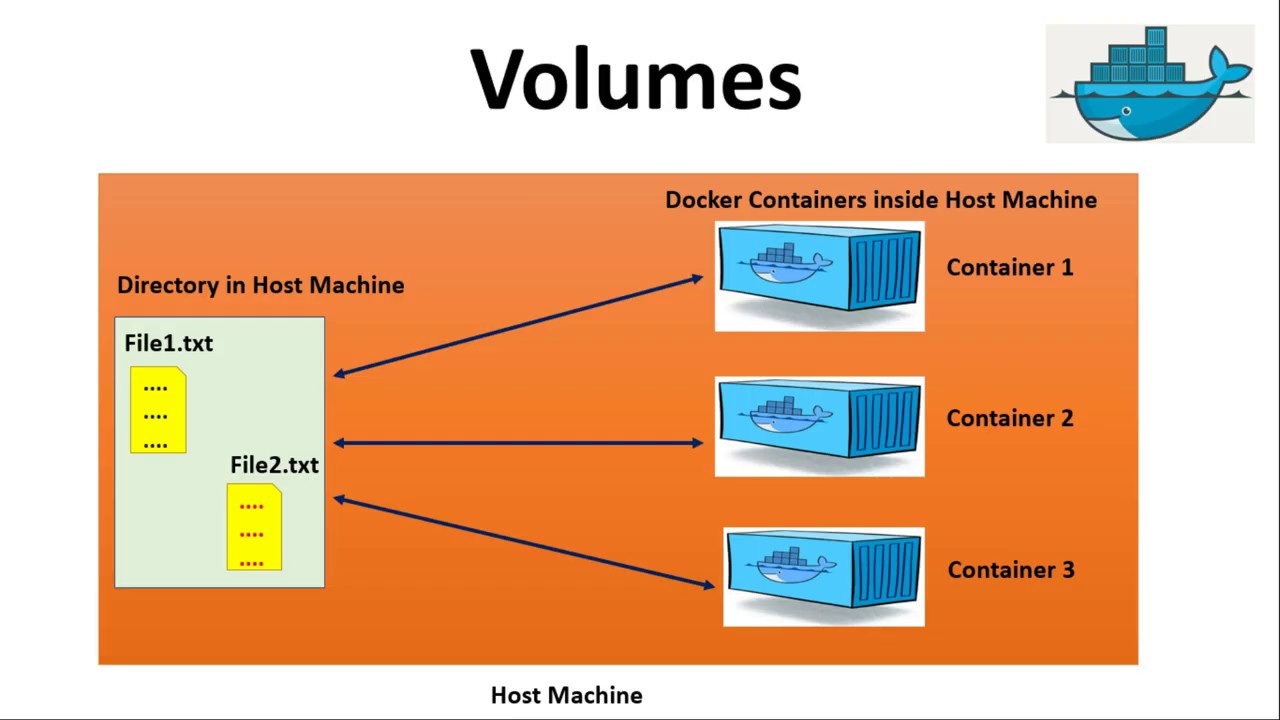
Sharing data means containers want to operate or use data on the host machine or on other containers.
Sharing Data Between Host and Container
Suppose we just created data on the host machine with path X
1
docker run -ti -v /home/viethoang/petproject:/home/petproject_container ubuntu
Explanation of parameters:
-ti: provides operations and connection on terminal
-v: shares data between host and container. The first path is the host machine’s, the one after : is the container’s. ubuntu is the Ubuntu operating system image
After running the command, we enter the container’s terminal and see the “petproject” folder on the host mapped to the “petproject_container” folder. Any changes in the folder on the host will affect the container and vice versa, for example adding new files or deleting. The same applies when in the container. However, if we delete the container, the data on the host remains.
Sharing Data Between 2 Containers
Now we have data on the host machine that we want to share with both containers. We already have 1 container shared from the host with id as shown below, so to share data from the host to the remaining container, we can use the command:
1
docker run -ti --name C2 --volume-from a8232b31eb20 ubuntu
Managing Volumes to Share Data for Containers
When a container is created, a volume is also created and assigned to that container. When the container is deleted, those volumes remain there and only disappear when we delete them directly.
1. Creating a Volume
Command docker volume ls to view volumes.
Create a new volume named D1: docker volume create D1.
2. Assigning a Volume to a Container
We execute the command:
1
 docker run -it --name C3 --mount source=D1,target=/home/disk ubuntu
Parameter --mount is to assign an additional volume when creating a container
source=D1 is the volume parameter to assign to the container
target=/home/disk with /home/disk being the folder that maps volume D1 into the container
3. Creating a Volume Mapped to the Host Machine
Now we want a volume mapped to a fixed folder already on the host:
1
docker volume create --opt device=/home/viethoang/petproject --opt type=none --opt o=bind D2
Check again:
1
2
3
4
5
6
7
8
9
10
11
12
13
14
15
16
17
~ docker volume inspect D2
[
    {
        "CreatedAt": "2021-07-28T16:19:19+07:00",
        "Driver": "local",
        "Labels": {},
        "Mountpoint": "/var/lib/docker/volumes/D2/_data",
        "Name": "D2",
        "Options": {
            "device": "/home/viethoang/petproject",
            "o": "bind",
            "type": "none"
        },
        "Scope": "local"
    }
]
- Creating a Container with a Volume Mapped to Local
1
docker run -it --name C4 -v D2:/home/disk ubuntu
Container C4 is created from the ubuntu image with volume D2 assigned, and the volume is mapped to a folder on the host from the previous section
1
2
3
4
~ docker exec -it  C4 bash
root@976236084a9c:/# ls /home/disk/
20202  20203  Algorithm-application  DE  Non-Trivial-DE  aia  ktlt
root@976236084a9c:/#
III. Creating and Managing Networks in Docker
Some Concepts and Default Networks
Concepts
Docker network ensures containers connect to the network:
- Containers on the same network can communicate with each other via name and port they listen on that network
- Connect one or more hosts
- Connect containers to other networks outside Docker
- Connect between container clusters
Default Network
There are 3 types of networks automatically created in Docker: bridge, none, host, we can view them with the command docker network ls.
bridge is Docker’s default network driver. Bridge is the most suitable driver for independent container communication. Containers on the same network can communicate with each other via IP address. If no driver is specified, bridge will be the default network driver when initializing.
none driver provides a container with its own networking stack and network space, often used with custom networks. This driver cannot be used in swarm clusters.
host is used when a container needs to communicate with the host and directly use the network of the running server.
Creating Container-to-Container Connections
Try creating 2 containers on the same bridge network so the 2 containers can connect to each other:
1
 docker run -it --rm --name B1 busybox`
After creating, check if container B1 has appeared in the bridge network:
1
 docker network inspect bridge
Or check via container:
1
docker inspect B1
Then create a similar container B2, check and try to ping from B1 to B2:
1
docker attach B1
The above command will enter container B1 and use the terminal inside to ping.
Creating Connections Between Host and Container
1
docker run -it --name B3 -p 8888:80 busybox
-p 8888:80 means mapping port 8888 on the host to port 80 on the container, meaning port 8888 on the host will display the content on port 80 of the container.
Creating Docker Networks
The purpose is to create separate networks for containers to use separately from each other
1: Create network
docker network create --driver bridge network1
The above command creates network1, we check with the command docker network ls.
2: Delete network
docker network rm name_network
3: Create a container connected to a specified network
docker run -it --name B4 --network network1 busybox
4: Connect a running container to another network
For example: we have 2 networks: network1 and network2, and a container B5 is connected to network1, and we want this container to also connect to network2, then we run the command.
docker network connect network2 B5
The above command connects container B5 to network2
IV. Dockerfile, Building Images from Dockerfile
Introduction to Dockerfile
Dockerfile is a text file that contains instructions for Docker to build images
Dockerfile = comments + command + arguments
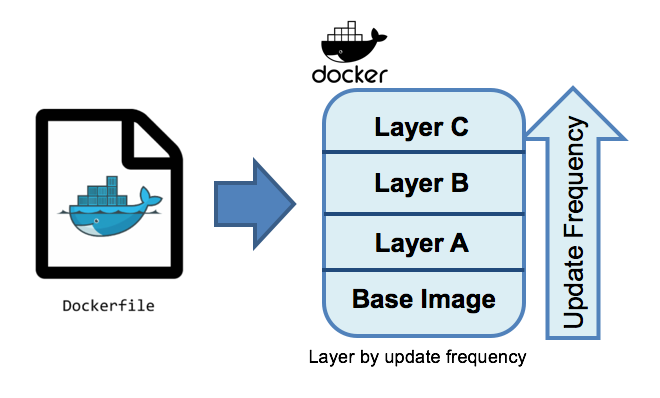
Docker images are created from multiple layers and by default it starts from a base layer. These layers are created from commands in the Dockerfile
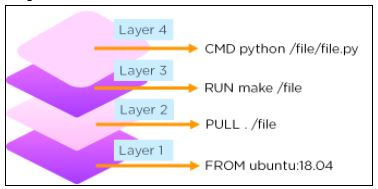
How to Write Dockerfile
Dockerfile Syntax
The general syntax of a Dockerfile has the form:
1
INSTRUCTION arguments
- INSTRUCTION is the name of directives in Dockerfile, each directive performs a specific task, as defined by Docker. When declaring these directives, they must be written in UPPERCASE.
- A Dockerfile must start with the FROM directive to declare which image will be used as the base to build your image.
argumentsis the content part of the directives, determining what the directive will do.
Example:
1
2
3
4
5
6
FROM alpine:3.4

RUN apk update && \
    apk add curl && \
    apk add git && \
    apk add vim
Main Directives in Dockerfile
FROM
Specifies which image will be used as the base image for the build process to execute subsequent commands. These base images will be downloaded from Public Repository or Private Repository depending on setup.
Syntax:
1
2
3
FROM <image> [AS <name>]
FROM <image>[:<tag>] [AS <name>]
FROM <image>[@<digest>] [AS <name>]
The FROM directive is required and must be placed at the top of the Dockerfile.
Example:
1
2
3
FROM ubuntu
or
FROM ubuntu:latest
LABEL
The LABEL directive is used to add metadata to Docker Images when they are built. They exist as key - value pairs, stored as strings. You can specify multiple labels for a Docker Image, and of course each key - value pair must be unique. If the same key is declared with multiple values, the most recently declared value will overwrite the previous one.
Syntax:
1
LABEL <key>=<value> <key>=<value> <key>=<value> ... <key>=<value>
You can declare metadata for Images line by line or separate them into individual lines.
Example:
1
2
LABEL com.example.some-label="lorem"
LABEL version="2.0" description="Lorem ipsum dolor sit amet, consectetur adipiscing elit."
To view metadata of a Docker Image, use the command line:
1
docker inspect <image id>
Example:
MAINTAINER
The MAINTAINER directive is used to declare author information of the person who wrote the Dockerfile.
Syntax:
1
MAINTAINER <name> [<email>]
Example:
1
MAINTAINER NamDH <namduong3699@gmail.com>
Currently, according to official documentation from Docker, declaring MAINTAINER is gradually being replaced by LABEL maintainer due to its flexibility when in addition to author name and email information, we can add many other optional information through metadata tags and can easily retrieve information with the docker inspect ... command.
Example:
1
LABEL maintainer="namduong3699@gmail.com"
RUN
The RUN directive is used to run a command during the image build process and is usually Linux commands. Depending on the base image declared in the FROM section, there will be corresponding commands. For example, to run an update command for Ubuntu it would be RUN apt-get update -y while for CentOS it would be Run yum update -y. The command result will be committed, and that commit result will be used in the next step of the Dockerfile.
Syntax:
1
2
RUN <command>
RUN ["executable", "param1", "param2"]
Example:
1
2
3
RUN /bin/bash -c 'source $HOME/.bashrc; echo $HOME'
-------- or --------
RUN ["/bin/bash", "-c", "echo hello"]
In shell form, you can execute multiple commands at once with the \ character:
1
2
3
FROM ubuntu
RUN apt-get update
RUN apt-get install curl -y
or
1
2
3
FROM ubuntu
RUN apt-get update; \
    apt-get install curl -y
ADD
The ADD directive will copy files and directories from the build machine or remote file URLs from src and add them to the image filesystem dest.
Syntax:
1
2
ADD [--chown=<user>:<group>] <src>... <dest>
ADD [--chown=<user>:<group>] ["<src>",... "<dest>"]
Where:
- src can declare multiple files, directories, …
- dest must be an absolute path or relative to WORKDIR directive.
Example:
1
2
3
ADD hom* /mydir/
ADD hom?.txt /mydir/
ADD test.txt relativeDir/
You can also set permissions on newly copied files/directories:
1
2
3
4
ADD --chown=55:mygroup files* /somedir/
ADD --chown=bin files* /somedir/
ADD --chown=1 files* /somedir/
ADD --chown=10:11 files* /somedir/
COPY
The COPY directive is similar to ADD in copying files and directories from <src> and adding them to <dest> of the container. Unlike ADD, it does not support adding remote file URLs from network sources.
Syntax:
1
2
COPY [--chown=<user>:<group>] <src>... <dest>
COPY [--chown=<user>:<group>] ["<src>",... "<dest>"]
ENV
The ENV directive is used to declare environment variables. These variables are declared as key - value pairs as strings. The values of these variables will be available for subsequent directives of the Dockerfile.
Syntax:
1
ENV <key>=<value> ...
Example:
1
2
3
ENV DOMAIN="viblo.asia"
ENV PORT=80
ENV USERNAME="namdh" PASSWORD="secret"
You can also change environment variable values with the container startup command:
1
docker run --env <key>=<value>
ENV is only used in the following commands:
- ADD
- COPY
- ENV
- EXPOSE
- FROM
- LABEL
- STOPSIGNAL
- USER
- VOLUME
- WORKDIR
CMD
The CMD directive defines commands that will be run after the container is started from the built image. Multiple can be declared but only the last CMD will run.
Syntax:
1
2
3
CMD ["executable","param1","param2"]
CMD ["param1","param2"]
CMD command param1 param2
Example:
1
2
FROM ubuntu
CMD echo Viblo
USER
Used to set username or UID to use when running the image and when running commands in RUN, CMD, ENTRYPOINT after it.
Syntax:
1
2
3
USER <user>[:<group>]
or
USER <UID>[:<GID>]
Example:
1
2
3
FROM alpine:3.4
RUN useradd -ms /bin/bash namdh
USER namdh
Creating Images with Dockerfile
Above I’ve covered the structure and main directives of a Dockerfile. Now we will practice building an image by writing a simple Dockerfile. Note that before starting, make sure your machine has Docker installed. If not, you can refer to the installation guide here.
Creating Dockerfile
Example 1
At this step, we will create a new path for the Dockerfile.
1
mkdir myproject && cd myproject
Next is creating the Dockerfile. Note that the name of Dockerfile must be exactly “Dockerfile” and there is no file extension for this file type. If not named correctly, when building, the system will report an error that the file cannot be found.
1
touch Dockerfile
After creating the Dockerfile, we enter the directives:
1
2
FROM alpine
CMD ["echo", "Hello world!"]
As you can see, the Dockerfile content above only contains 2 directives: FROM and CMD. CMD contains the echo command and will print “Hello world!” to the screen when the container is started from the image built from this Dockerfile. We proceed to create the image with the command:
1
docker build -t <image name> .
Finally, we run the docker run <imageID> command to create and run the container. The result will be the text “Hello world!” printed on the screen.
V. Docker-compose
Concepts
It is a tool that helps us set up and manage multiple containers, networks, volumes (collectively called services) and configure services quickly and simply by running according to specifications in the docker-compose.yml file
Main Functions
- Create and manage multiple independent environments on a host machine, ensuring independent memory partitions to avoid conflicts
- Only recreate changed containers, recognize unchanged containers and reuse them
- Define and use environment variables in YAML file
Docker-compose.yml
It is a file stored in YAML format. This file stores directives for docker compose to read and execute those directives, such as creating containers from images, creating networks, configuring services.
1
2
3
4
5
6
7
8
9
10
11
12
13
14
15
version: "3.9"  # optional since v1.27.0
services:
  web:
    build: .
    ports:
      - "5000:5000"
    volumes:
      - .:/code
      - logvolume01:/var/log
    links:
      - redis
  redis:
    image: redis
volumes:
  logvolume01: {}
Docker-compose Practice
Our practice task is to define a docker file to create the following components
- MySQL Container
- HTTP APACHE Container
- PHP-FPM Container
- Network (bridge) for the above services to connect to this network
- Map port 9999 of the host machine to port 80 of the HTTP server
Creating docker-compose.yml
Create a mycode folder inside and create a docker-compose.yml file with the following content (I have comments explaining in the file content).
1
2
3
4
5
6
7
8
9
10
11
12
13
14
15
16
17
18
19
20
21
22
23
24
25
26
27
28
29
30
31
32
33
34
35
36
37
38
39
40
41
42
43
44
version: "3" # is the docker composer version

#Create a network named my-network
networks:
    my-network:
        driver: bridge

# Create services (containers)
services:

    #Create container my-php from image php:latest connected to network my-network
    my-php:
        container_name: php-product
        image: 'php:latest'
        hostname: php
        restart: always
        networks:
            - my-network

    #Create container my-httpd from image httpd:latest connected to network my-network, map port 9999 of host to port 80
    my-httpd:
        container_name: c-httpd01
        image: 'httpd:latest'
        hostname: httpd
        restart: always
        networks:
            - my-network
        ports:
            - "9999:80"
            - "443:443"

     #Create container my-mysql from image mysql:latest connected to network my-network, config environment variables
    my-mysql:
        container_name: myql-product
        image: "mysql:latest"
        hostname: mysql
        restart: always
        networks:
            - my-network
        environment:
            - MYSQL_ROOT_PASSWORD=123abc
            - MYSQL_DATABASE=db_site
            - MYSQL_USER=sites
            - MYSQL_PASSWORD=123abc
The above file is divided into 3 parts
The first part is declaring the docker composer version, here I use version 3
- The next part is declaring network creation, here I create a network named my-network with network type bridge
The next part is creating services, here creating 3 services which are 3 containers (php, httpd, mysql), these services all connect to the my-network network created in part 2
- Container my-php created from image php:latest connected to network my-network
- Container my-httpd created from image httpd:latest connected to network my-network, maps port 9999 of host to port 80 and port 443 to 443 of host
- Container my-mysql created from image mysql:latest connected to network my-network, config environment variables like MYSQL_ROOT_PASSWORD, MYSQL_DATABASE, MYSQL_USER, MYSQL_PASSWORD
Running docker-compose.yml to Create Services
After creating the docker compose file, we will run this file to create the defined services.
Go to the folder containing the docker-compose.yml file and run the command
docker-compose up
To stop running services, use the command
docker-compose stop
To end running services and completely delete containers, use the command
docker-compose down
Monitoring Logs of Services
docker-compose logs [SERVICES]
VI. Docker swarm
VII. References
Other reference sources: